YouTube Video Player for In-Store TV Screens Display Any YouTube Video on Your Store TV Screen. Just Paste the URL
EZ-AD's YouTube Loader lets you play any YouTube video directly on your in-store TV screens. Product demos, manufacturer how-to videos, brand content, paste the link and it goes live in minutes. No downloads, no files to manage, no IT support needed.
Trusted by
50,000+ businesses in 27 countries, including Ace Hardware, True Value, Walmart, Disney, and Verizon.













How to Display YouTube video on Your Store TV Screen.
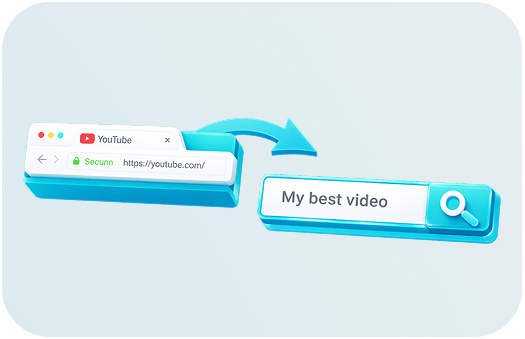
Find your video on YouTube
Any YouTube video works: product demos, manufacturer how-to guides, brand content, or educational videos. Tutorial videos are especially effective: they advertise your product and educate your customers at the same time. Works for any department, any product category.

Copy the YouTube URL from the address bar
That is all you need. Every YouTube video has its own unique URL. Copy it from your browser's address bar and you are ready for the next step.
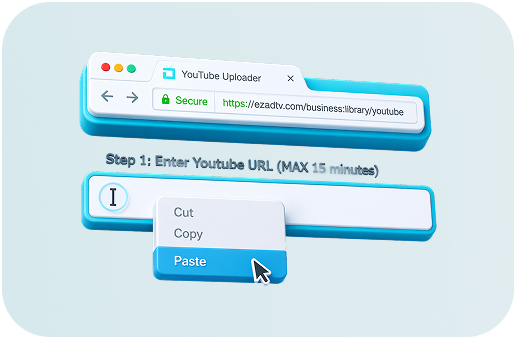
Paste the URL into the EZ-AD YouTube Loader
Find the YouTube Loader in your EZ-AD portal on the left navigation bar. Paste the URL and your video is ready to configure. Videos must be under 15 minutes.

Choose which TV screens show this video
Run different YouTube videos on different screens throughout your store. Tools aisle, cleaning products, outdoor section, each screen can show content relevant to what is on that shelf. Change it any time, instantly, from the dashboard.
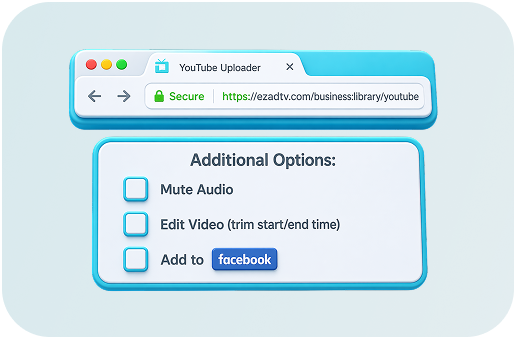
Customize your video before it goes live
Mute the audio, set a custom start and end point, schedule display dates, and share to social media, all from the same screen. Your video plays exactly how and when you want it on your TV screens.
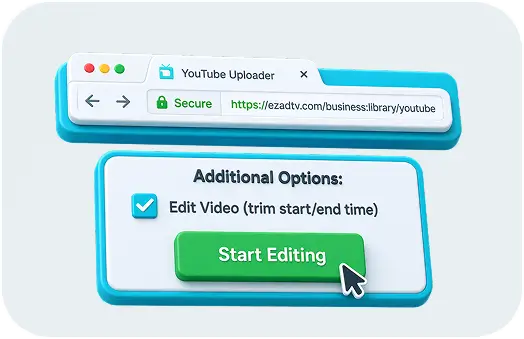
Need just a portion of the video? Trim it in seconds.
From the editing page, choose exactly which section you want to use. Set the start and end point and trim the clip down to only the part that matters. No video editing software needed.

Drag the sliders to set your start and end points
Drag the sliders to your preferred start and end time. No complicated video editing software needed. Your trimmed clip is ready to display on your TV screens.
Click "Trim & Use Video" to save and push to your screens
Done. Your video goes live on your TV screens immediately, or automatically on the scheduled dates you chose.

Commitment To Security and Trust
Our platform ensures top-tier security and robust governance, validated by SOC 2 Type II audits. We're steadfast in protecting data, fully embracing PCI DSS compliance for secure transactions.


Ready to Play YouTube Videos on Your Store TV?
Join 50,000+ businesses already using EZ-AD to display content on their in-store screens.

Frequently Asked Questions
EZ-AD TV is a plug-and-play digital signage system that lets you display content on any TV screen in your store. The YouTube Loader is one of its key features, allowing you to play any YouTube video directly on your in-store TV screens by simply pasting the URL — no downloads, no files, no technical setup required.
- Connect the HDMI cable from your TV to the EZ-AD media player.
- Connect the media player to your Wi-Fi or Ethernet network. All media is downloaded and stored on the device.
- Log on to ezadtv.com to start loading your YouTube videos and other content.
No special hardware or expensive television is required. We recommend a 40-inch screen for end-cap mounting. The simplest, most affordable TV you can find works perfectly with EZ-AD.
EZ-AD TV includes a one-time device fee for the media player, plus a monthly plan tailored to your business needs. The YouTube Loader is included in select plans. For current pricing details, please visit our pricing page or contact our team.
No, absolutely not. You can cancel your monthly plan at any time. You also have 30 days to return the EZ-AD media player for a full refund.
Yes. Any publicly available YouTube video can be loaded, including product demos, manufacturer content, how-to guides, and brand videos. Videos must be under 15 minutes in length.
No. EZ-AD automatically removes YouTube ads before the video plays on your store screen, so your customers only see the content you chose.
Yes. The EZ-AD video editor lets you set a custom start and end point so you can show only the portion of the video that is relevant. No video editing software needed.
Yes. Each TV screen in your store can display a different video. Assign content by location or department and update each screen independently from your dashboard.
Typically 5 to 10 minutes after you paste the URL and save. The video is downloaded to the EZ-AD media player and then loops automatically on your chosen schedule.